
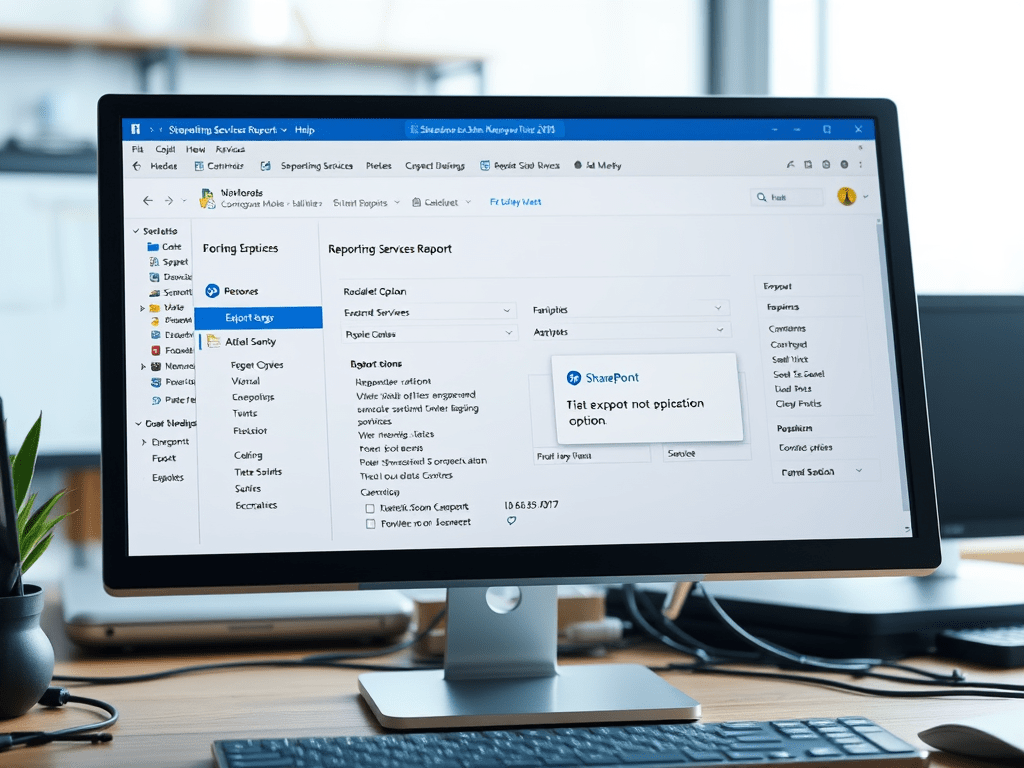
When having a Reporting Services report on a SharePoint web page the export option does not list the available options. In order to get it working, you need to configure the report viewer auto generated axd files[Reserved.ReportViewerWebControl.axd] in the IIS.
- Open the IIS Manager.
- Go to the site where you have the report .
- In the Features view area click “Handler Mappings”.
- Find the ReportViewerWebPart and double click on it
- Copy the Type.
- Click Cancel
- On the right side panel, select the option “Add Managed Handler”.
- A new window will open and add the text below
Request Path: Reserved.ReportViewerWebControl.axd
Type: this is the text copied on step 5
Name: Reserved.ReportViewerWebControl.axd - Click OK and do an IISReset
NOTE
For the Type on step 8 you can add this:
Microsoft.ReportingServices.SharePoint.UI.WebParts.WebPartHttpHandler, Microsoft.ReportingServices.SharePoint.UI.WebParts, Version=10.0.0.0, Culture=neutral, PublicKeyToken=89845dcd8080cc91






 Arsénio Ferraz
Leave a comment