

SharePoint, a Microsoft cloud-based service, is widely used to create websites, lists, and pages. When organizations need to back up or move a site or page to another site, copying is a common method.
In this blog, I will share several methods for copying a SharePoint site to another site. This guide is designed for those seeking information on this topic.
Copying a SharePoint page from one site to another can be a crucial task for organizations looking to manage data across different sites. Here are some effective methods to achieve this:
- Method 1: Using Power Automate
- Method 2: Using PnP PowerShell
- Method 3: Using Torpedo’s SPFx Extension
Method 1: Using Power Automate
Power Automate is a powerful tool that allows you to automate workflows between your favorite apps and The services. Here’s how you can use it to copy a SharePoint page:
Sign in to Power Automate: Go to powerautomate.microsoft.com and sign in with your credentials.
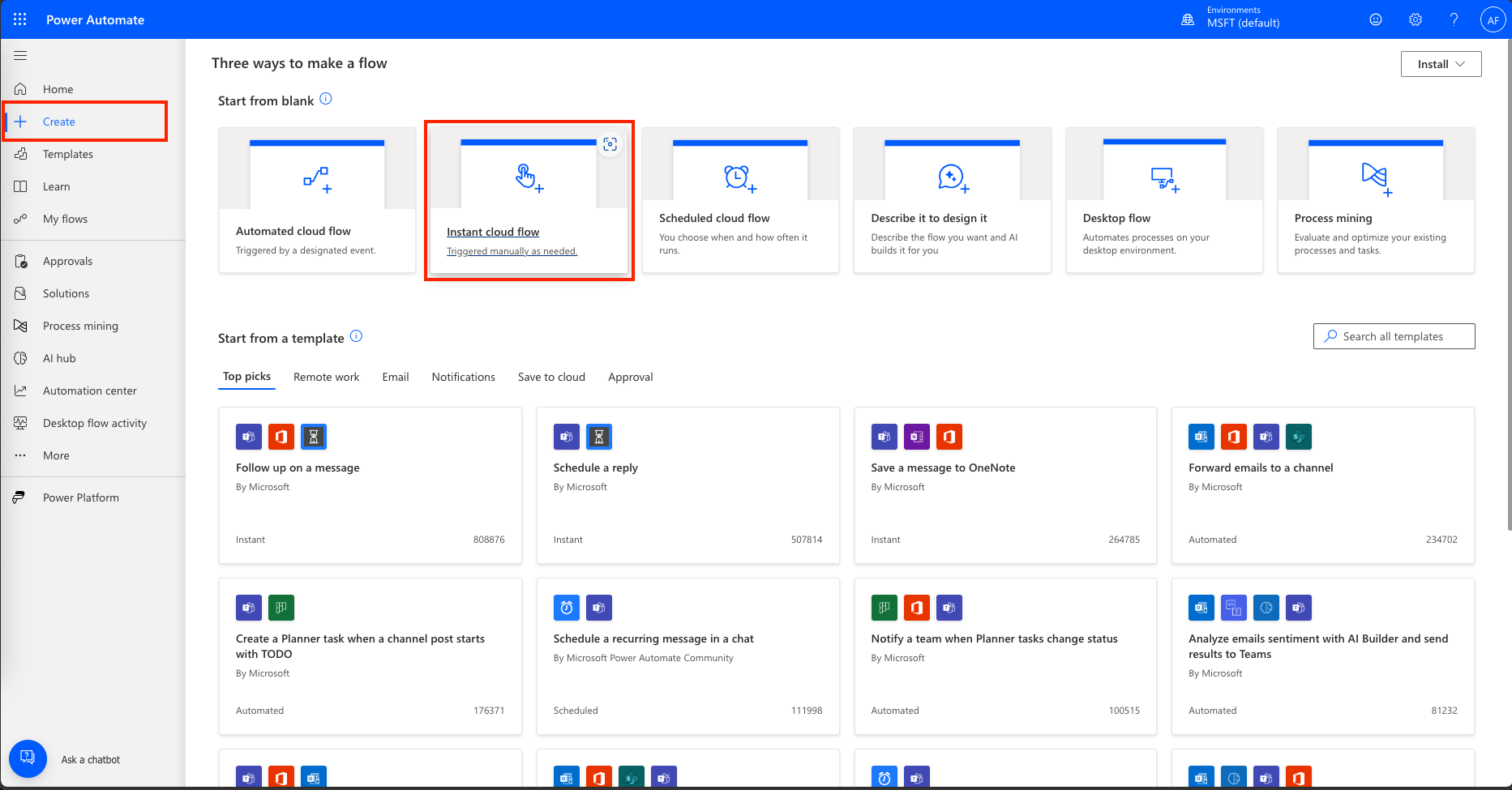
Create a Flow: Click on “Create” and choose “Instant cloud flow.”
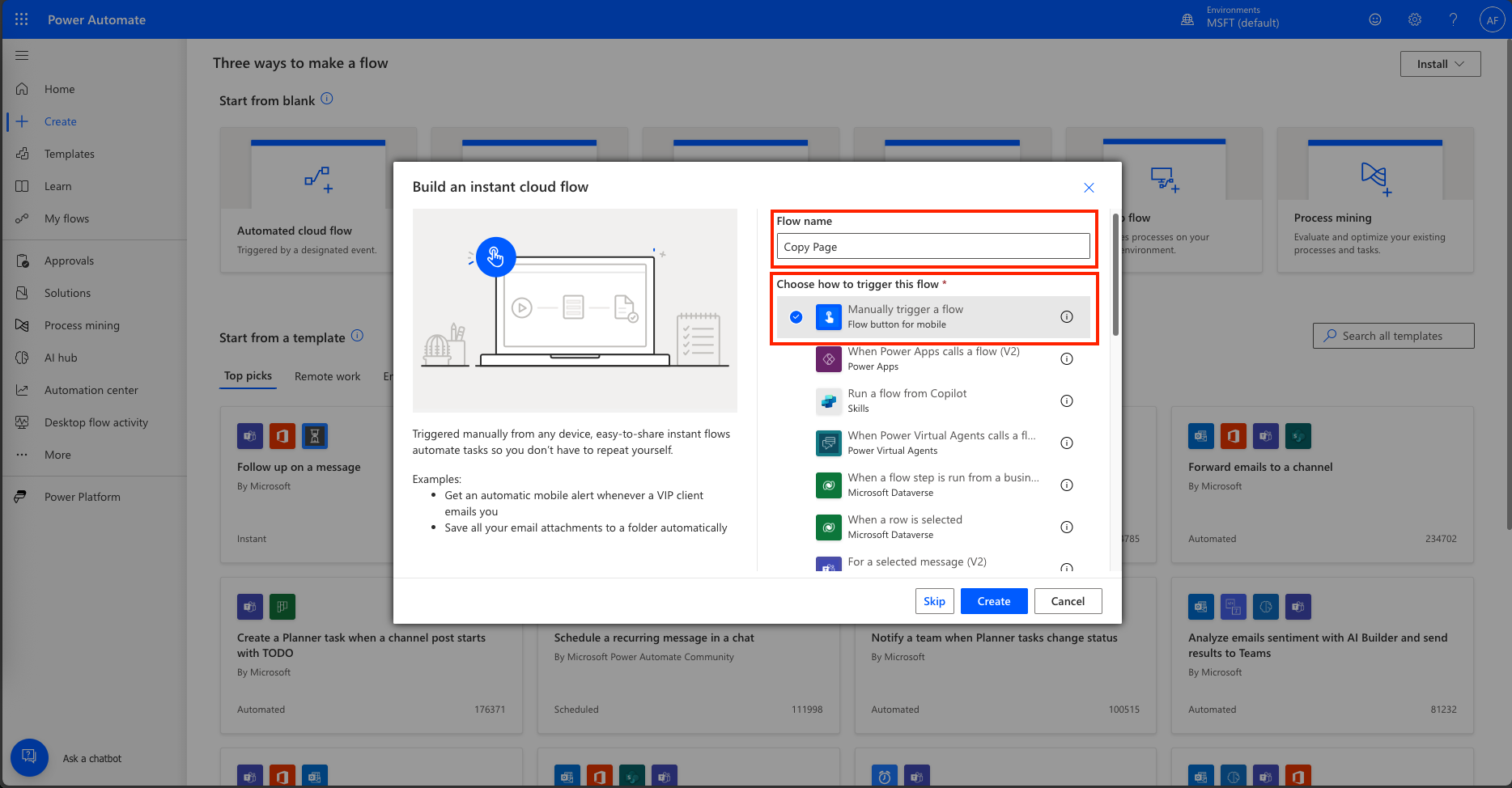
Configure the Flow:
. Add a Flow name and choose “Manually trigger a flow.”
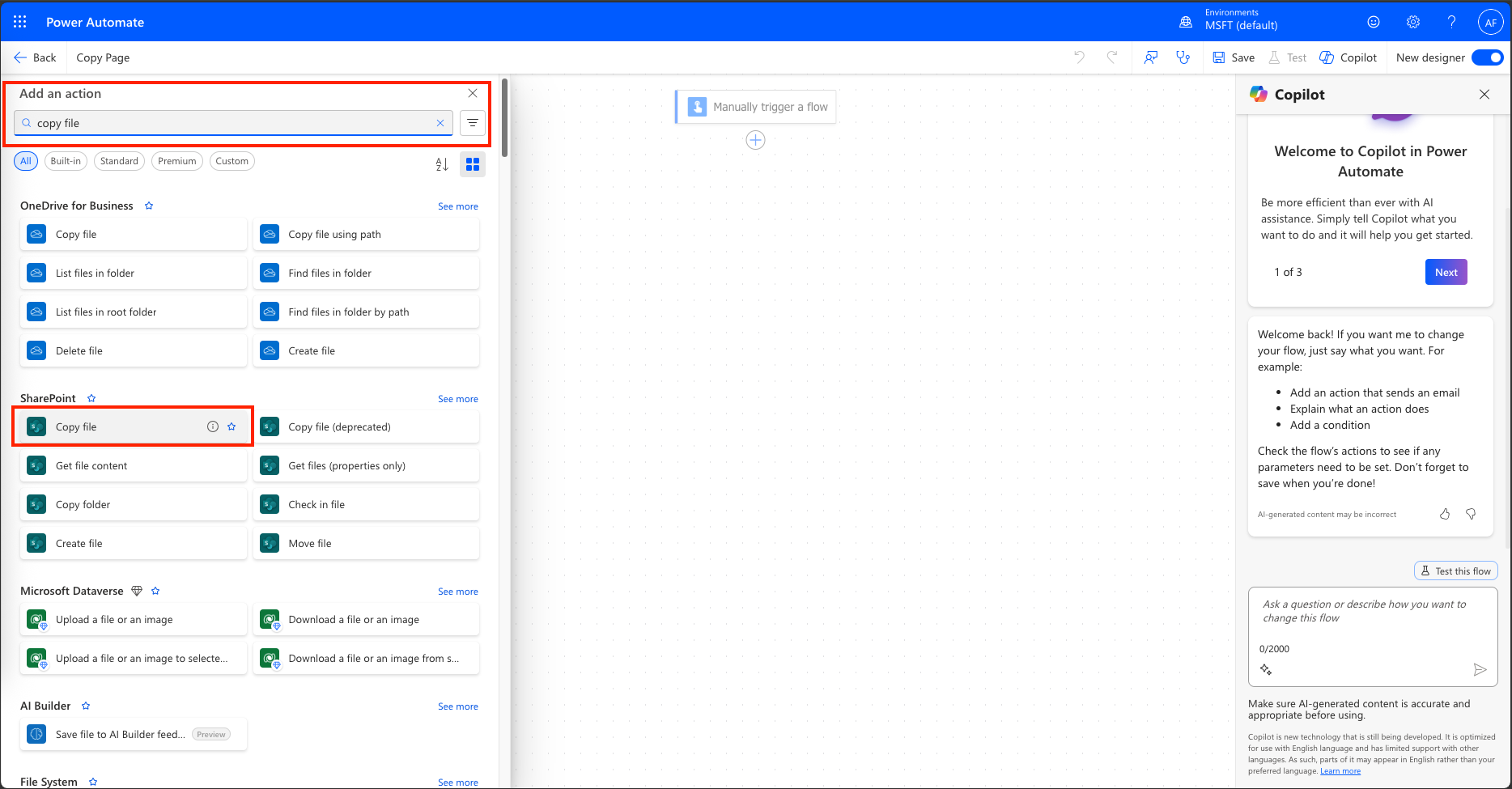
. Press the + icon and add an action
. Add an action to “Copy file.”
. Fill in the details: current site address, file to copy, destination site address, and destination folder, if another file is already there.
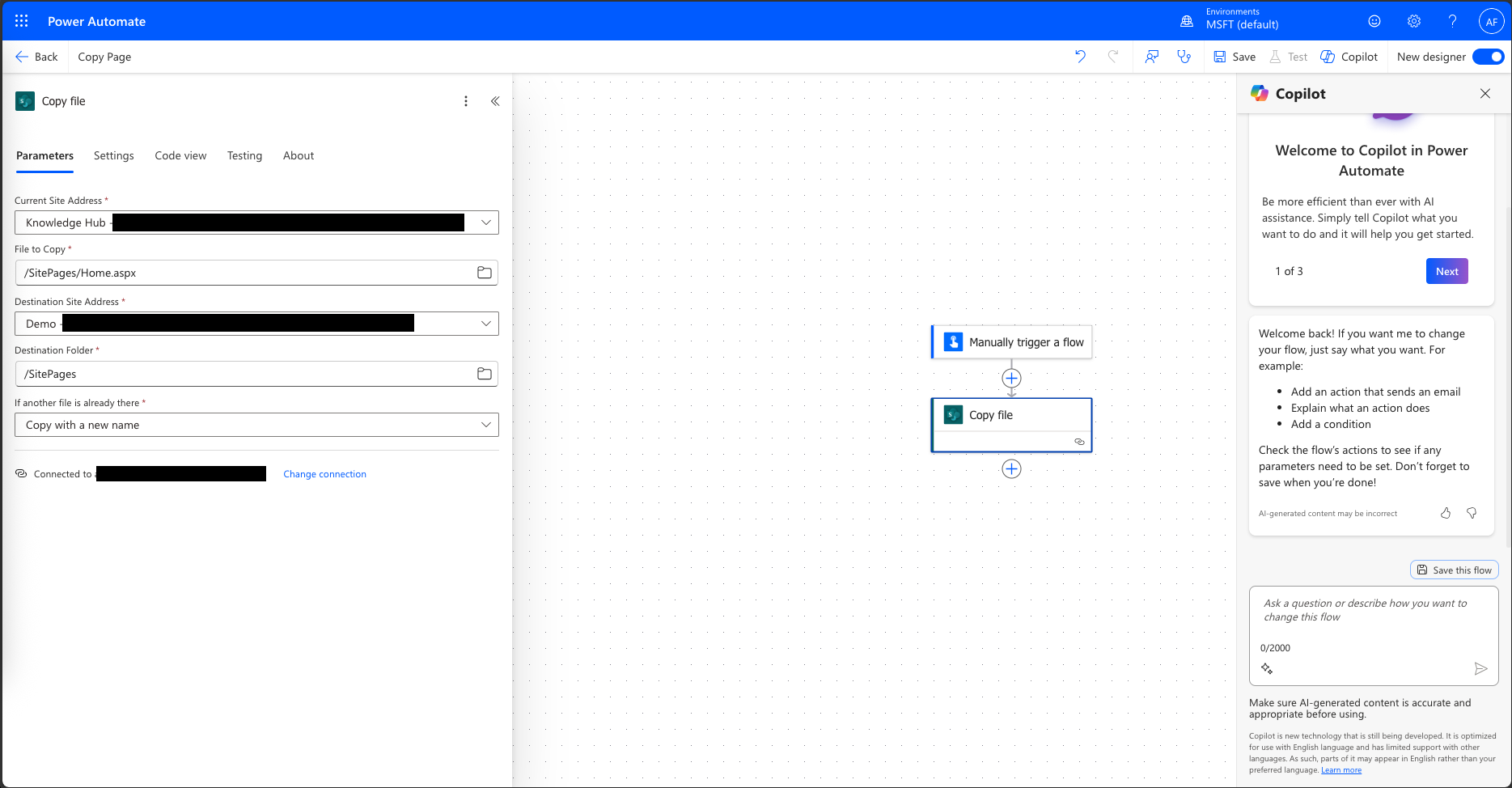
Run the Flow: Save and test the flow. Check the destination site to ensure the page has been copied successfully.
Method 2: Using PnP PowerShell
PnP PowerShell provides a more technical approach to copying SharePoint pages:
#ensure you have the PnP PowerShell module installed. If not, you can install it using the following command
Install-Module PnP.PowerShell

#Connect to the source SharePoint site where the page you want to copy is located
$sourceSiteUrl = "https://your-source-site-url"
Connect-PnPOnline -Url $sourceSiteUrl -Interactive

#export the page from the source site to a temporary file
$pageName = "YourPageName.aspx"
$tempFilePath = "C:\\Temp\\YourPageName.aspx"
Export-PnPPage -Identity $pageName -Path $tempFilePath

#Connect to the destination SharePoint site where you want to copy the page
$destinationSiteUrl = "https://your-destination-site-url"
Connect-PnPOnline -Url $destinationSiteUrl -Interactive

#Import the page to the destination site:
Import-PnPPage -Path $tempFilePath -WebUrl $destinationSiteUrl
Method 3: Using Torpedo’s SPFx Extension
Torpedo offers a SharePoint Framework (SPFx) extension “Copy Page to Site” that simplifies the process:
Install the Extension: Deploy the Torpedo SPFx package to the App Catalog and activate it within the desired site collection.
Activate the Extension: Navigate to the Site Contents page and activate the extension.
Copy/Move Pages: Select the pages you want to copy or move, specify the destination site, and choose whether to retain version history.
Whether you prefer using Power Automate, PnP PowerShell, or Torpedo’s SPFx extension, copying SharePoint pages to another site can be done efficiently with these methods. Choose the one that best fits your technical expertise and organizational needs.







 Arsénio Ferraz
Leave a comment