
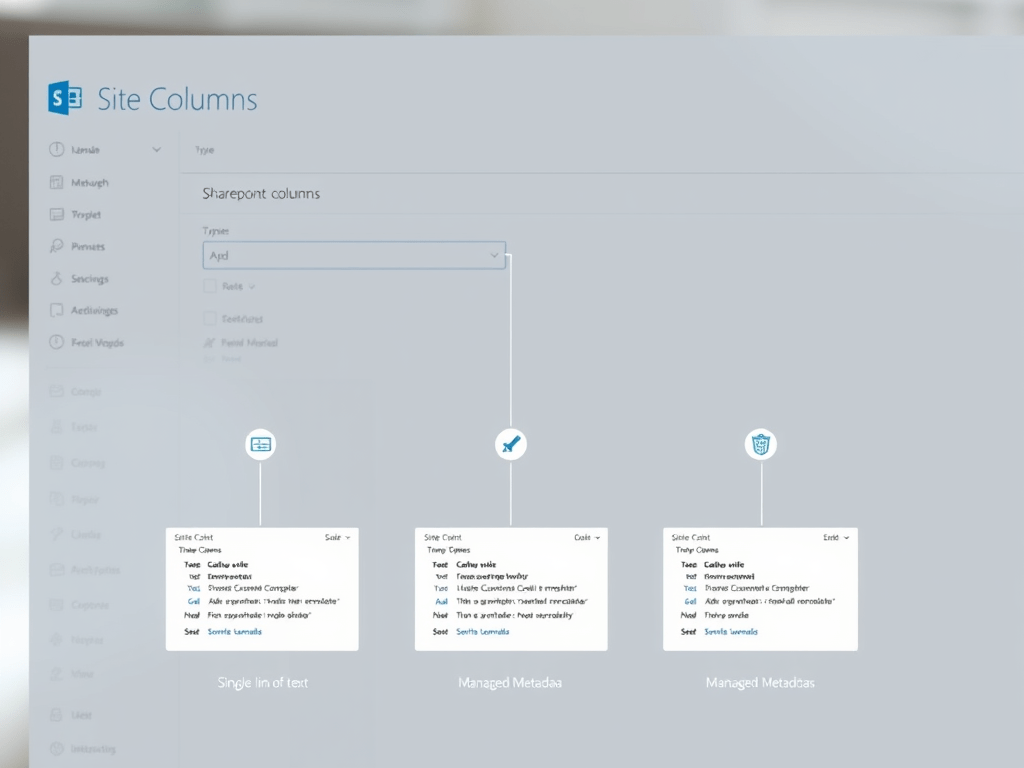
What Are SharePoint Site Columns?
Site columns in SharePoint are reusable fields you define at the site level and can use across multiple lists and libraries. They help standardize data, improve search, and make information management a breeze.
Main SharePoint Site Column Types & Options
| Column Type | Description | Key Options & Settings |
|---|---|---|
| Single line of text | Up to 255 characters of plain text. | Default value, validation formula, description. |
| Multiple lines of text | Longer text entries, can append changes. | Number of lines, append changes, rich text support. |
| Number | Numeric values, with optional decimals. | Min/max, default, display as percentage. |
| Currency | Numbers formatted as currency. | Currency type, decimal places, default value. |
| Date and Time | Pick dates and times from a calendar. | Date only or date & time, default value. |
| Choice | Predefined list of options (single or multi-select). | Allow multiple, fill-in choices, default value. |
| Yes/No (Checkbox) | Simple true/false field. | Default value. |
| Person or Group | Select users or groups from your directory. | Allow multiple, show photo, restrict to groups. |
| Hyperlink or Picture | Store URLs or images. | Display as hyperlink or picture. |
| Location | Enter physical addresses, integrates with Bing Maps. | Filter by city, state, etc. |
| Image | Upload and display an image. | Inline preview in list/library. |
| Managed Metadata | Use terms from the Term Store for tagging and categorization. | Term sets, synonyms, hierarchy. |
| Lookup | Pull values from another list/library. | Source list, display column, enforce relationship. |
| Calculated | Calculate values based on other columns using formulas. | Formula, output format (text, number, date). |
You can further customize columns with validation rules, descriptions, required/optional settings, and more.
How to Create and Manage Site Columns
- Go to your site settings and click Site columns.
- Click Create to add a new column.
- Choose the name, type, and configure the options you need.
- Save and reuse this column in any list or library.
How to Create Content Types and Add Them to Lists & Libraries in SharePoint
What’s a Content Type?
A content type is a reusable collection of columns (metadata) and settings that defines the attributes of an item or document in SharePoint. It’s like a template that ensures consistency and streamlines processes across your site.
How to Create a Content Type
- Go to your site where you want the content type.
- Navigate to Site Settings > Site Content Types.
- Click Create.
- Enter the name, description, and select a parent content type (like Document or Item).
- Choose a group (use an existing one or create new).
- After creation, add the columns you want to the content type.
How to Add Content Types to Lists and Libraries
To use your content type in a list or library:
- Enable content type management:
- Go to the list/library settings.
- Click Advanced settings.
- Set “Allow management of content types?” to Yes and save.
- Add your content type:
- In settings, select Add from existing site content types.
- Pick your new content type and add it.
- Now, when you add items or documents, you can choose which content type to use—each with its own fields and settings.
PowerShell Script: Create a List, Document Library, and Add Content Types
This script creates a content type, adds a custom column, creates a list and a document library, and associates the content type with both.
# Requires PnP PowerShell module
# Adjust parameters for your environment

# Connect to your SharePoint site
Connect-PnPOnline -Url "https://contoso.sharepoint.com/sites/yoursite" -Interactive

# Create Content Type
$ctName = "Custom Document"
$ctGroup = "Custom Types"
$ctDescription = "Content type for custom documents"

$ct = Add-PnPContentType -Name $ctName -Group $ctGroup -Description $ctDescription

# Add a custom column to the content type
Add-PnPField -DisplayName "Project" -InternalName "Project" -Type Text -Group $ctGroup
Add-PnPFieldToContentType -Field "Project" -ContentType $ctName

# Create a list
$listName = "Projects"
New-PnPList -Title $listName -Template GenericList

# Add content type to the list
Add-PnPContentTypeToList -List $listName -ContentType $ct

# Create a document library
$libraryName = "ProjectDocuments"
New-PnPList -Title $libraryName -Template DocumentLibrary

# Add content type to the library
Add-PnPContentTypeToList -List $libraryName -ContentType $ct

Write-Host "Lists and document library created with custom content type!"
SharePoint Site Column Field XML Cookbook
This guide provides XML schemas for all main SharePoint site column types, with explanations and examples for each field option. Use these snippets to define columns in your SharePoint solutions or deploy them using PowerShell and PnP modules.
General Field XML Structure
Every field (column) in SharePoint is defined by a <Field> element with attributes such as ID, Name, DisplayName, Type, and Group. Some fields include child elements like <CHOICES>, <Default>, or <Formula>.
Required attributes for custom fields:
ID(GUID)TypeNameDisplayNameGroup2
Field Types, Options & Examples
Single Line of Text
<Field ID="{GUID}" Name="SingleLineText" DisplayName="Single Line Text" Type="Text"
       Description="A single line of text" Required="FALSE" MaxLength="255" Group="Demo Columns" />
Options:
MaxLength(default 255)RequiredEnforceUniqueValuesIndexedDefault
Multiple Lines of Text
<Field ID="{GUID}" Name="MultiLineText" DisplayName="Multiple Lines of Text" Type="Note"
       Description="Multiple lines of text" Required="FALSE" NumLines="6" RichText="TRUE" Group="Demo Columns" />
Options:
NumLines(default 6)RichText(TRUE/FALSE)AppendOnly(TRUE/FALSE)Required
Choice (Dropdown, Radio, or Checkbox)
Single Choice:
<Field ID="{GUID}" Name="ChoiceExample" DisplayName="Choice Example" Type="Choice" Format="Dropdown"
       Required="TRUE" Group="Demo Columns">
  <Default>Option 1</Default>
  <CHOICES>
    <CHOICE>Option 1</CHOICE>
    <CHOICE>Option 2</CHOICE>
    <CHOICE>Option 3</CHOICE>
  </CHOICES>
</Field>
Multiple Choice:
<Field ID="{GUID}" Name="MultiChoiceExample" DisplayName="Multi Choice Example" Type="MultiChoice"
       Required="FALSE" Group="Demo Columns">
  <CHOICES>
    <CHOICE>Option A</CHOICE>
    <CHOICE>Option B</CHOICE>
    <CHOICE>Option C</CHOICE>
  </CHOICES>
</Field>
Options:
Format(Dropdown, RadioButtons, etc.)FillInChoice(TRUE/FALSE)Default
Number
<Field ID="{GUID}" Name="NumberExample" DisplayName="Number Example" Type="Number"
       Min="0" Max="100" Decimals="2" Required="FALSE" Group="Demo Columns" />
Options:
Min,MaxDecimalsShowAsPercentage(TRUE/FALSE)Default
Currency
<Field ID="{GUID}" Name="CurrencyExample" DisplayName="Currency Example" Type="Currency"
       Decimals="2" Min="0" Required="FALSE" Group="Demo Columns" />
Options:
DecimalsMin,MaxLCID(Locale ID for currency)
Date and Time
Date Only:
<Field ID="{GUID}" Name="DateOnly" DisplayName="Date Only" Type="DateTime" Format="DateOnly"
       Required="FALSE" Group="Demo Columns" />
Date and Time:
<Field ID="{GUID}" Name="DateTime" DisplayName="Date and Time" Type="DateTime" Format="DateTime"
       Required="FALSE" Group="Demo Columns" />
Options:
Format(DateOnly, DateTime)Default
Yes/No (Boolean)
<Field ID="{GUID}" Name="BooleanExample" DisplayName="Yes/No Example" Type="Boolean"
       Required="FALSE" Group="Demo Columns" />
Options:
Default(TRUE/FALSE)
Person or Group
<Field ID="{GUID}" Name="PersonExample" DisplayName="Person Example" Type="User"
       Required="FALSE" UserSelectionMode="PeopleAndGroups" Group="Demo Columns" />
Options:
UserSelectionMode(PeopleOnly, PeopleAndGroups)UserSelectionScope(Group ID restriction)
Hyperlink or Picture
<Field ID="{GUID}" Name="HyperlinkExample" DisplayName="Hyperlink Example" Type="URL"
       Required="FALSE" Format="Hyperlink" Group="Demo Columns" />
Options:
Format(Hyperlink, Image)
Lookup
<Field ID="{GUID}" Name="LookupExample" DisplayName="Lookup Example" Type="Lookup"
       List="{List-GUID}" ShowField="Title" Required="FALSE" Group="Demo Columns" />
Options:
List(GUID of the target list)ShowField(column to display)AllowMultipleValues(TRUE/FALSE)
Calculated
<Field ID="{GUID}" Name="CalculatedExample" DisplayName="Calculated Example" Type="Calculated"
       ResultType="Text" Group="Demo Columns">
  <Formula>=Title & " - " & [Created]</Formula>
  <FieldRefs>
    <FieldRef Name="Title"/>
    <FieldRef Name="Created"/>
  </FieldRefs>
</Field>
Options:
FormulaResultType(Text, Number, DateTime, etc.)
Managed Metadata
<Field ID="{GUID}" Name="ManagedMetadata" DisplayName="Managed Metadata" Type="TaxonomyFieldType"
       ShowField="Term1033" Group="Demo Columns" />
Options:
SspId(Term Store GUID)TermSetId(Term Set GUID)ShowField
Image
<Field ID="{GUID}" Name="ImageExample" DisplayName="Image Example" Type="Image"
       Required="FALSE" Group="Demo Columns" />
How to Get Field XML from Existing Columns
You can retrieve the XML schema of any existing column using SharePoint REST API:
GET _api/web/lists/getbyTitle('Your List Title')/fields/getByTitle('Your Column Title')/SchemaXml
This is useful for generating accurate XML for your custom columns





 Arsénio Ferraz
Leave a comment