
Create an import Picture URL mapping
Edit the User Profile Picture property by navigating to Application Management > Manage Service Applications > User Profile Service Application > Manage User Properties > Picture > Edit
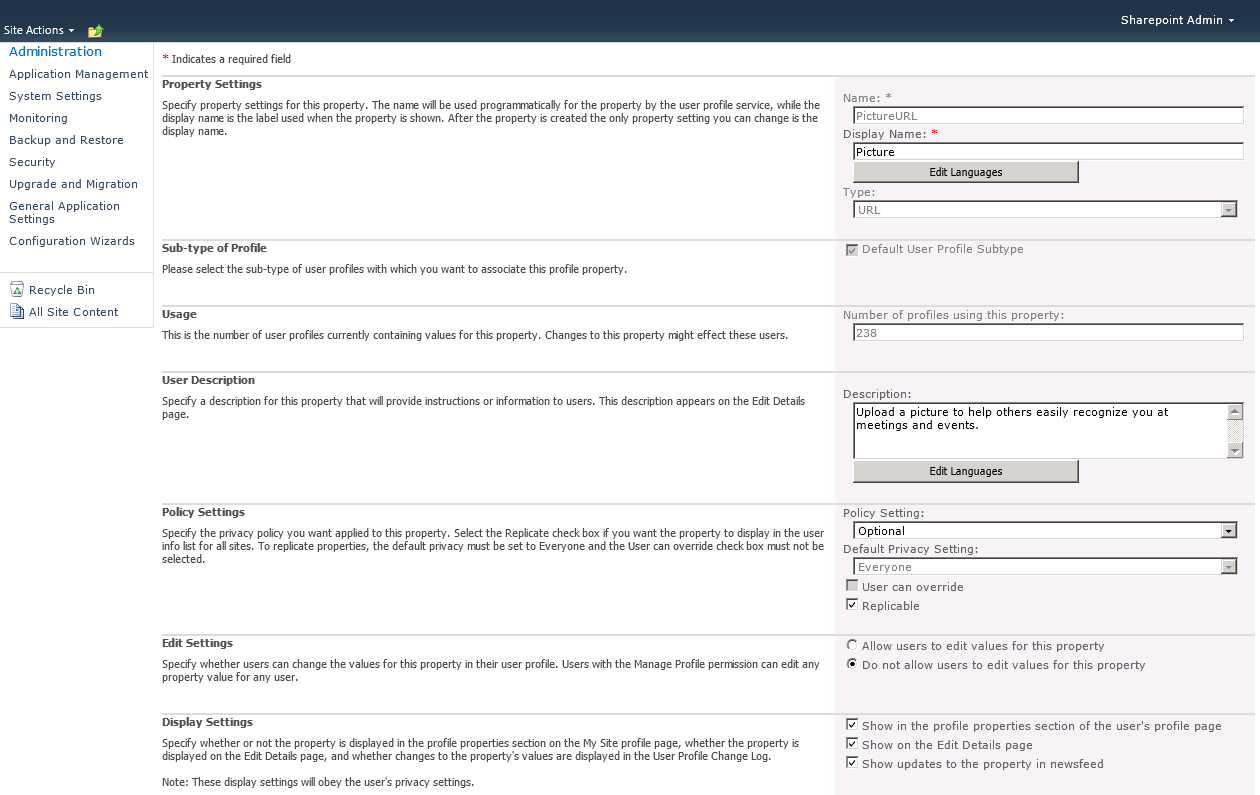
Make sure your Active Directory profile connection is selected, and then choose the thumbnailPhoto attribute and Import direction, and then click add.

If you don’t want your users to be able to change their personal photos, change Edit Settings to “Do not allow users to edit values for this property”.

Click OK to make the changes
Perform a full profile synchronization
Application Management > Manage Service Applications > User Profile Service Application > Start Profile Synchronization > Start a full synchronization

This full synchronization my take a while, depending how deep your forest goes.
Run Update-SPProfilePhotoStore PowerShell Command
Launch the SharePoint 2010 Management Shell (Start > All Programs > Microsoft SharePoint 2010 Products > SharePoint 2010 Management Shell > Run as Administrator) and run the following command:
Update-SPProfilePhotoStore -CreateThumbnailsForImportedPhotos 1 -MySiteHostLocation http://<YourServerName>/my
All photos will be stored under this picture library http://<YourServerName>/my/User%20Photos/Profile%20Pictures






 Arsénio Ferraz
Leave a reply to SPAdam Cancel reply